
| Purpose | Create and manage occupancy-based PIE rules that recommend or apply rate changes based on property occupancy. |
| Best for | General managers, property administrators, and owners responsible for pricing decisions and PIE configuration. |
| Use this when | You need to create, edit, schedule, activate, or delete an occupancy-based rule or alert. |
| Requirements | Configure your minimum and maximum price limits before creating an automatically applied occupancy-based rule. |
| Expected result | PIE evaluates occupancy using your rule conditions and either recommends or automatically applies the configured rate change. |
| Limitations | Editing an active rule may cause PIE to evaluate it again. Accommodation types linked together through Split Inventory cannot be included together in Rules and Alerts. |
Introduction
Occupancy-based rules in PIE respond to changes in property occupancy and can recommend or automatically apply rate adjustments based on the conditions you configure.
Use this article to set the required price limits, create an occupancy-based rule, edit or delete an existing rule, and understand what can happen when occupancy changes or an active rule is edited.
Table of contents
Before you manage occupancy-based rules
Occupancy-based rules can directly affect your property's rates. Review the behaviors below before creating or changing a rule so you understand what can trigger it and what happens after a rate change is applied.
- A new rule can affect dates that already meet its conditions. When you create an occupancy rule, some future dates may already have the occupancy percentage required to trigger it. For example, if you create a rule that increases the rate when occupancy is greater than 30%, some dates may already be above 30%. PIE can allow you to decide whether the new rule should also be applied to those dates.
- Changes in occupancy can trigger the rule again. Occupancy can change when a reservation is created, modified, canceled, or deleted. Inventory changes can also affect occupancy, such as adding or removing an accommodation type, changing the number of rooms, or changing linked accommodation relationships through Split Inventory. Whenever one of these changes causes occupancy to meet a rule's conditions, PIE can trigger that rule.
- Automatic and manual rules apply rate changes differently. An automatically applied rule can change the rate as soon as its conditions are met. A rule that requires manual confirmation creates a recommendation instead, so a user can review the suggested change in Rate Manager before approving or denying it.
- A triggered rule can also be reversed when occupancy changes. If occupancy later stops meeting the rule condition, PIE reverses an automatically applied rule automatically. For a manually applied rule, PIE suggests the reversal for manual review. When several rules must be reversed, they are reversed according to the order in which they were applied and the current occupancy state.
- There is no one-click manual reversal while the rule condition is still met. If a rule already changed a rate and occupancy still satisfies the rule, manually update the rate through Rate Manager or the Availability Matrix. You can review the previous PIE rate change in the PIE Activity Log.
- Editing an active rule can cause PIE to evaluate it again. Changes to an active rule can cause PIE to re-check its conditions. This can result in the rule applying again to rooms it previously affected. For qualifying edits, PIE displays a confirmation before the change is saved.
- Accommodation types linked through Split Inventory cannot be selected together in Rules and Alerts. If the accommodation types you select have a linked inventory relationship, PIE asks you to change the selection before you can use them together in the rule. Review your Split Inventory configuration if needed.
How PIE calculates occupancy percentage
PIE calculates the occupancy percentage using the number of occupied rooms compared with the property's available inventory. Blocked rooms and rooms that are currently out of service are removed from the available inventory used in the calculation.
Property occupancy percentage =
Number of rooms occupied ÷ (Total number of rooms − Blocked rooms − Out-of-service rooms) × 100
Calendar occupancy also considers calendar blocks, including blocked dates, out-of-service rooms, and courtesy holds.
Manage occupancy-based rules
Expand the workflow that matches the action you want to complete.
Create an occupancy-based rule
Creating an occupancy-based rule is a four-step process. Complete each step in order so PIE has the price boundaries, rule conditions, schedule, and activation behavior needed to evaluate the rule correctly.
To start, open the Main Menu , click PIE, and select Rules and Alerts.
Step 1 - Set your price limits
Price limits define the lowest and highest rates PIE is allowed to recommend or apply. These limits protect the rule from changing rates outside the pricing boundaries you set.
You must configure price limits before creating an automatically applied occupancy-based rule.
- On the Rules and Alerts page, click Edit in the Price Limits section.
- Enter the Minimum Price and Maximum Price under Master Price Limits. You can also configure minimum and maximum limits for individual accommodation types if needed.
- Click Save.
Step 2 - Create the new rule
- On the Rules and Alerts page, scroll to the Rules and Alerts section and click + Create New Rule/Alert.
Step 3 - Add the rule or alert details
- In Type, select Occupancy-Based Rule/Alert.
- Enter a Name that helps you identify the rule later.
- Under Rule applies to, choose how PIE should measure occupancy:
- Overall Occupancy: PIE evaluates the property's overall occupancy. When the condition is met, the rate change applies to all accommodations covered by the rule.
- Individual Room Type Occupancy Rule: PIE evaluates each selected accommodation type separately. A rate change applies only to an accommodation whose individual occupancy meets the rule condition.
- Combined Room Type Occupancy: PIE evaluates the combined occupancy of the selected accommodation types. When the combined occupancy meets the condition, the rate change applies to those selected accommodations.
- Configure the Parameters. Choose the occupancy condition, such as greater than or lower than a percentage, and configure how PIE should increase or decrease the rate when that condition is met.
- Continue to the remaining rule settings. You will complete the rounding, schedule, and activation options in Step 4 before saving the finished rule.
Occupancy-based rule example
Suppose you want PIE to increase rates when occupancy is greater than 50%. You may not want that increase to affect tomorrow's rate just because tomorrow is already above 50% occupancy.
In that situation, you can limit the rule to dates farther in the future. For example, configure the rule to apply starting from 7 days out. The occupancy condition remains the same, but the rule is evaluated only within the date range you selected.
Step 4 - Configure rounding, schedule, and activation
-
Rounding, optional: Use Round to nearest when you want resulting rates to follow a consistent pricing pattern.
For example, entering 9 can result in rates such as 89, 99, or 109. Entering 00 can create a pricing pattern such as 1100, 1200, or 1300. After you enter a value, PIE displays an example of the resulting pricing pattern.
PIE rounds to the nearest lower matching value. For example, if the rounding value is .49 and the calculated rate is 28.25, PIE rounds the rate to 27.49, not 28.49.
- Schedule: Choose whether the rule should be Always active or apply only during a Specific Date Range. If you choose a specific date range, select the start date, end date, and applicable days of the week. Add additional date ranges if needed.
-
Activation: Choose how the resulting rate changes should be handled:
- Require manual confirmation: PIE creates a rate recommendation that a user must review in Rate Manager before the change is applied.
- Automatically apply rule: PIE can change the rate immediately when the rule conditions are met, without waiting for manual approval.
- Review your settings and click Save.
Selecting Automatically apply rule gives PIE permission to make rate changes based on the rule parameters without requiring manual approval.
If dates already meet the occupancy condition when you create the rule, PIE can allow you to choose whether the rule should also be applied to those dates.
Edit an occupancy-based rule
Editing an active occupancy-based rule can cause PIE to evaluate the rule again. If the edited rule's conditions are met, it may apply again to rooms it previously affected.
- Open the Main Menu
, click PIE, and select Rules and Alerts.
- Find the rule you want to change and click the Edit
option.
- In the Edit Rule/Alert panel, update the rule settings you need to change.
- Review the updated settings and click Save.
Confirm active-rule re-evaluation
When you save a qualifying change to an active rule, PIE displays a confirmation before completing the edit. The message explains that the change will cause the rule to be evaluated again and that it may apply again to rooms it previously affected.
- Click Save in the confirmation dialog to continue. PIE saves the edit and evaluates the active rule again.
- Click Cancel to close the confirmation and return to the rule editor without completing the save.
The re-evaluation confirmation does not appear for new rules, inactive rules, or edits that change only the rule name or the Automatically apply rule setting.
Consider alternatives before changing an active rule
Because editing an active rule can cause it to be evaluated again, consider whether one of these options better matches what you want to accomplish:
- Create a new rule when the new configuration should start from a specific date or cover a different date range without changing the existing active rule.
- Use manual confirmation when you want PIE to recommend resulting rate changes instead of applying them automatically.
Delete an occupancy-based rule or alert
- Open the Main Menu
- Find the rule you want to remove and click the Delete icon.
- In the warning dialog, click Delete to confirm the removal.
Frequently asked questions
How do I change an existing occupancy-based rule from manual to automatic?
- Open the Main Menu
- Find the rule and click Edit
- Scroll to the Activation section and select Automatically apply rule.
- Click Save.
Selecting Automatically apply rule allows PIE to make rate changes without requiring manual approval.
If the rule has pending price recommendations generated before the change, PIE may display a prompt asking what to do with them. Select Apply to apply the pending recommendations, or select Remove to delete the existing pending suggestions.
If changing the activation mode is the only edit you make, PIE does not display the active-rule re-evaluation confirmation described in the Edit an occupancy-based rule workflow.
What happens once an occupancy-based rule is triggered?
When an automatically applied rule is triggered
PIE updates the rate using the parameters configured in the rule, including the selected rate change, rounding settings, and minimum and maximum price limits.
Multiple occupancy rules can apply to the same dates. For example, you could configure:
- A rule that increases the rate by 15.00 when occupancy is greater than 30%, with no near-term date restriction.
- Another rule that decreases the rate by 15.00 when occupancy is lower than 40%, but only within five days of arrival.
PIE evaluates rules according to the direction of occupancy. If more than one rule needs to be triggered at the same time, decreasing rules are applied first.
When a manual rule is triggered
PIE creates a suggested rate change instead of changing the rate automatically.
- Rate Manager shows a notification with the suggested price change.
- You can approve or deny the recommendation based on your pricing strategy.
- You can open the accommodation details from the alert to review the recommendation and make other rate or stay-restriction changes if needed.
- Use the Rate Manager list view to review occupancy-based rules that were triggered or applied during a specific date range.
What happens when occupancy no longer meets the condition
A rate change can be reversed if occupancy later moves back outside the condition that triggered the rule.
- If the rule is set to apply automatically, PIE reverses it automatically.
- If the rule requires manual approval, PIE creates a recommendation to reverse the change so a user can review it.
- If several rules need to be reversed, PIE reverses them according to the order in which they were triggered and the current occupancy state.
If occupancy still satisfies the rule and you want to manually restore another rate, there is no one-click rule reversal. Update the rate in Rate Manager or the Availability Matrix. You can use the PIE Activity Log to review the previous rate change.
How does PIE calculate the rate when several rules exist for one room type?
Occupancy-based rules work on a cumulative basis. Each rate increase or decrease is calculated from the room's current rate at the moment that rule is applied.
Example
Assume the current rate for today is 100.00 and two occupancy rules are configured:
- Increase the rate by 5.00 when occupancy is greater than 60%.
- Increase the rate by 10.00 when occupancy is greater than 80%.
Case 1: Both rules are applied automatically
- Occupancy reaches 61%. The first rule is triggered and increases the current rate from 100.00 to 105.00.
- Occupancy later reaches 81%. The second rule is calculated from the current 105.00 rate, so PIE increases it to 115.00.
Case 2: The rules require manual approval
- Occupancy reaches 61%. PIE recommends increasing the 100.00 rate to 105.00.
- The user denies or ignores that recommendation, so the room rate remains 100.00.
- Occupancy later reaches 81%.
- PIE triggers the second rule. Because the current rate is still 100.00, PIE recommends increasing it by 10.00 to 110.00.
Related articles
Use these resources for additional information about PIE rules, rate-change history, rate management, and linked inventory:
Comments
Do I understand this correctly? (please see picture)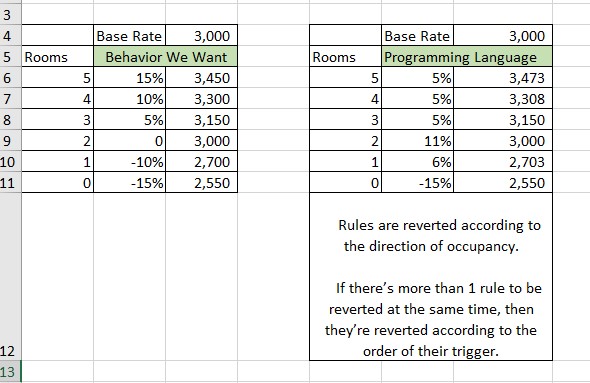
Hello, Tommy Buadaeng,
We have created a new ticket for you, so that our Support Team can take a closer look at your request and offer assistance as soon as possible.
Regards!
Please sign in to leave a comment.